
- Survival
- Up to 8 players
- Crossplay
- Campaign or Sandbox
The Lord of the Rings: Return to MoriaServer Hosting
Keep your company's Moria open at every hour, whether or not the friend who started the world is online. Up to eight Dwarves can play at once, and they can join from Steam, Epic, PS5 or Xbox Series X|S.
- Instant setup
- DDoS protection
- 24/7 support
- Full file access
- NVMe SSD storage
- 3 day money-back
Starting at ¥1433 JPY/month
Pick your Moria server
Server location
Nearest to you

Secure and trusted payments
Server locations around the world
Pick the location closest to your players for the lowest latency. Test your ping from this browser to each of our data centers and see the hardware behind every one.
- Locations
- 16+
- Top CPU clock
- 5.7 GHz
- Support
- 24/7

North America
Virginia
Your ping
- Processor
- AMD EPYC 4465P
- Max clock
- 5.40 GHz
- Memory
- DDR5
- Network port
- 1-10 Gbps
Your ping
Your ping test starts in a moment.
North America
South America
Europe
Asia Pacific
Everything Your Return to Moria Server Needs
The Lord of the Rings: Return to Moria server hosting that keeps the mountain open for your whole company: fast hardware, a protected network and a team on call. All of it comes with your server.
Network
Always-on DDoS Protection
A server knocked offline in the middle of a siege costs your company the fight. Attack traffic is filtered out before it reaches your server, around the clock.
Hardware
NVMe SSDs
Your world grows with every tunnel your company digs and every hall it rebuilds, and the server saves all of it. NVMe drives make those saves quick, so the game keeps moving while you mine and build.
Hardware
AMD Ryzen and EPYC Processors
Hordes, patrols and eight Dwarves swinging pickaxes all run on the server's processor. Our AMD processors reach clock speeds of up to 5.7 GHz.
Support
Support Around the Clock
A world that will not load, or an invite code that does not work? Our team answers by ticket and live chat at any hour, and step-by-step guides cover the common jobs.
Panel
Automatic Tasks
Schedule restarts on an interval, such as one each morning before your company logs in. Set them once and the panel keeps doing them.
Panel
Invite Your Company
Give a friend access to the control panel so they can restart the server or change a setting when you are away. You choose what each of them can do.
Network
Automatic Failover
If a machine fails, your server restarts on a healthy one automatically. The expedition carries on, and you do not need to open a ticket.
Network
Low Latency Routes
A block that lands late hurts more with every enemy in the room. We control the routes your players' traffic takes, and we tune them for performance. Pick the location nearest your company for the lowest ping.
Your own server
Why rent a Return to Moria dedicated server?
In a normal co-op game, the world lives on one player's machine, and the mountain closes when that player logs off. A The Lord of the Rings: Return to Moria dedicated server runs the world in a data center, so anyone in your company can dig, build and fight at any hour.
The mountain stays open
The server hosts the world, so no player has to. Whoever has a free evening can log in, restock the camp and push the next tunnel forward.
Eight Dwarves, four platforms
Up to eight players can be connected at once. Players on Steam, the Epic Games Store, PS5 and Xbox Series X|S can all join the same server.
Bring your world, or start one
Already deep into a world on PC? Copy its save file to the server and carry on where you stopped. A new world can be a Campaign or a Sandbox, on a seed you choose.
Under the mountain
Mine, build and fight through Moria with your company
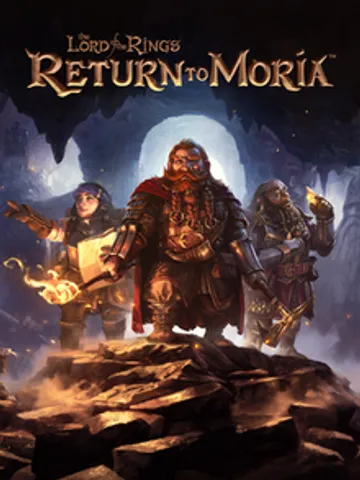
The Lord of the Rings: Return to Moria is a survival crafting game for one to eight players. Your company of Dwarves delves into a procedurally generated Moria, and your server holds that world for everyone who plays in it.
How to set up a Return to Moria server
- Choose the server location nearest your company.
- Place your order, and we set your Moria server up.
- With the server stopped, open
MoriaServerConfig.iniin the server's files. - Set the world's name and, if you want one, a password.
- For a new world, choose Campaign or Sandbox, a difficulty and a seed.
- Start the server and let it create the world.
Edit the file only while the server is stopped.
Joining with an invite code or by address
- Start the server and copy the invite code from its console.
- Send the code to your company.
- In the game, open the Join World screen and enter the code.
You can also join by address. Open Advanced Join Options and enter your server's address and port under Direct Join.
How to move a world to your server
The game's developer documents this for PC worlds from Steam and Epic.
- On your PC, open
%LocalAppData%\Moria\Saved\SaveGamesSteam(orSaveGamesEpic) and find the world files. Their names start withMW_. - Stop your Moria server.
- Upload the files to the server's
Moria/Saved/SaveGamesDedicatedfolder. - Put the world's name in
MoriaServerConfig.ini. - Start the server again and join.
The two copies do not sync. After the move, the server's copy is the one your company plays on.
How to block players and set permissions
The server keeps its player permissions in MoriaServerPermissions.txt.
- Stop the server before you edit the file.
- Open
MoriaServerPermissions.txtin the server's files. - Mark a player as blocked, or limit what they may build and whether they may open storage.
- Start the server once you have saved the file.
The server console also has kick, block and unblock commands. Type players to list who is connected.
Mine and craft
Dig resources out of the rock, then craft armor, weapons and tools. Better gear lets your company push deeper.
Build a base
Raise a base from scratch or build on the halls you find. Your Dwarves need food, sleep and warmth, so a good camp earns its keep.
Set the danger
Noise matters under the mountain. Your server's difficulty settings cover combat, enemy aggression, survival and drops, and how often hordes, sieges and patrols arrive.
What our customers say
We’re rated excellent or 4.3/5.0 based on over 435+ reviews at
- June 14th
Great host! “ I've been with this host for a little over 7 months now. Support is given almost instantly. Max I ever waited was 30(ish) minutes. ”
- Daniel Ramirez
- May 20th
Excellent and easy to use host “ Excellent service, really quick and easy to set up with lots of options and systems that really take the hassle out of hosting a server. ”
- Reece Cooper
- May 5th
I LOVE using RAMShard! “ I very much LOVE using RAMShard. It's efficient, easy to use, and the staff is extremely helpful! ”
- Cole Spencer
Looking for more customer reviews?
Read More »FAQ
Have your own question? Ask us.
Eight players can be connected at the same time, which is the game's limit. The server sets no limit on how many different players join over time, so a larger group can take turns. The Hearth plan is sized for a full company of eight.
Yes. The developer's dedicated server guide says players on Steam, Epic, PS5 and Xbox Series X|S may join a server. Everyone uses the same invite code, whatever they play on.
Start the server, copy the invite code from its console and enter it on the Join World screen in the game. Share the code with your company only. You can also open Advanced Join Options and use Direct Join with the server's address and port.
You can. The dedicated server is a free tool in the Steam library. Your PC has to stay on for the world to be online, you may need to forward a port on your router, and the developer warns of memory and processor load when one machine runs both the server and the game. A rented server runs in a data center at every hour, and you manage it from a control panel in your browser.
Yes, for a world saved on PC through Steam or Epic. Copy the world's save files, whose names start with MW_, into the server's save folder and put the world's name in the server's config file. The developer's guide does not cover moving a world from a console.
Yes. Set a password in the server's config file and players must enter it before they join. You can also block a player, and generate a fresh invite code if the old one has spread too far.
Yes. The server console has a command for the presets: story, solo, normal, hard and custom. With custom, you set combat, enemy aggression, survival, drops, hordes, sieges and patrols one at a time. A change applies without a restart.
Yes. You choose Campaign or Sandbox when the server creates a world, along with its seed and difficulty. The choice applies to new worlds, so pick it before the first start.
The plan and its monthly price are at the top of this page. The price covers the server, DDoS protection and support. Paying quarterly or annually lowers what each month costs.
Yes. Our support team answers by ticket and live chat at any hour, and the knowledge base walks through the common jobs one step at a time.
We have a 3 day money back guarantee. Contact us within 3 days of your payment and we refund it in full.
Visa, Mastercard, American Express, PayPal, Apple Pay, Google Pay and Link.
Need a different game?
Choose from our list of games below.