
- Zombie survival
- 8 to 30+ players
- Navezgane or random world
- PC and console crossplay
7 Days to DieServer Hosting
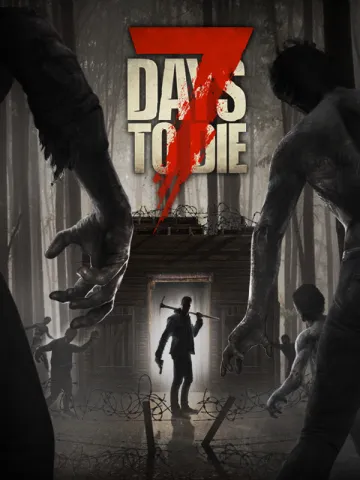
Keep your 7 Days to Die world online day and night, so the fort your group built is standing whenever one of you logs in. You pick Navezgane or a random world, set the difficulty and the blood moon schedule, and bring 8, 20 or more than 30 survivors on PC, with console crossplay on a server that meets the game's rules for it.
- Instant setup
- DDoS protection
- 24/7 support
- Full file access
- NVMe SSD storage
- 3 day money-back
Starting at $11.99 USD/month
Choose your plan
Server location
Nearest to you
- Common
- Most popular
- Best value
Secure and trusted payments
Server locations around the world
Pick the location closest to your players for the lowest latency. Test your ping from this browser to each of our data centers and see the hardware behind every one.
- Locations
- 16+
- Top CPU clock
- 5.7 GHz
- Support
- 24/7

North America
Virginia
Your ping
- Processor
- AMD EPYC 4465P
- Max clock
- 5.40 GHz
- Memory
- DDR5
- Network port
- 1-10 Gbps
Your ping
Your ping test starts in a moment.
North America
South America
Europe
Asia Pacific
What Your 7 Days to Die Server Runs On
7 Days to Die server hosting has one hard test: horde night with the whole group online. Fast hardware, a protected network and a team on call come with every plan.
Network
Always-on DDoS Protection
A blood moon lasts one night, and a server knocked offline halfway through leaves the fort undefended. We filter attack traffic before it reaches your server, on every plan and at every hour.
Hardware
NVMe SSDs
7 Days to Die keeps what your group builds, digs and loots in the world's save. NVMe drives write those changes quickly while everyone works at once.
Hardware
AMD Ryzen and EPYC Processors
Horde night is the busiest hour a 7 Days to Die server has, with the whole group and the horde in one place. The AMD processors behind your server clock up to 5.7 GHz.
Support
Support Around the Clock
Stuck on a mod that will not load or a world that will not generate? Send a ticket or open live chat at any hour and our team picks it up. Our guides walk through the common jobs one step at a time.
Panel
Automatic Tasks
Set a daily restart for the hours your group sleeps, with an in-game announcement ahead of it so nobody is caught mid-fight. Choose the interval once and the panel repeats it.
Panel
Bring In Your Co-admins
Give a trusted friend access to the control panel so they can restart the server or change a setting before horde night while you are away. You choose what each person can do.
Network
Automatic Failover
When a machine fails, your server starts again on a healthy one with no ticket from you. Your world and its day count carry on.
Network
Low Latency Routes
Timing matters when a zombie is within arm's reach. We control the routes your group's traffic takes and tune them for performance, so pick the location nearest your players for the lowest ping.
Your own world
Why rent a 7 Days to Die dedicated server?
In a peer-to-peer game of 7 Days to Die, the world lives on the host's PC and closes when the host quits. A 7 Days to Die dedicated server keeps one world open for the whole group, so anyone can log in to craft, visit a trader or reinforce the walls.
The world stays open without you
Your server runs in a data center around the clock. Friends in other time zones play when it suits them, and the base is where they left it.
Room for 8, 20 or 30+ survivors
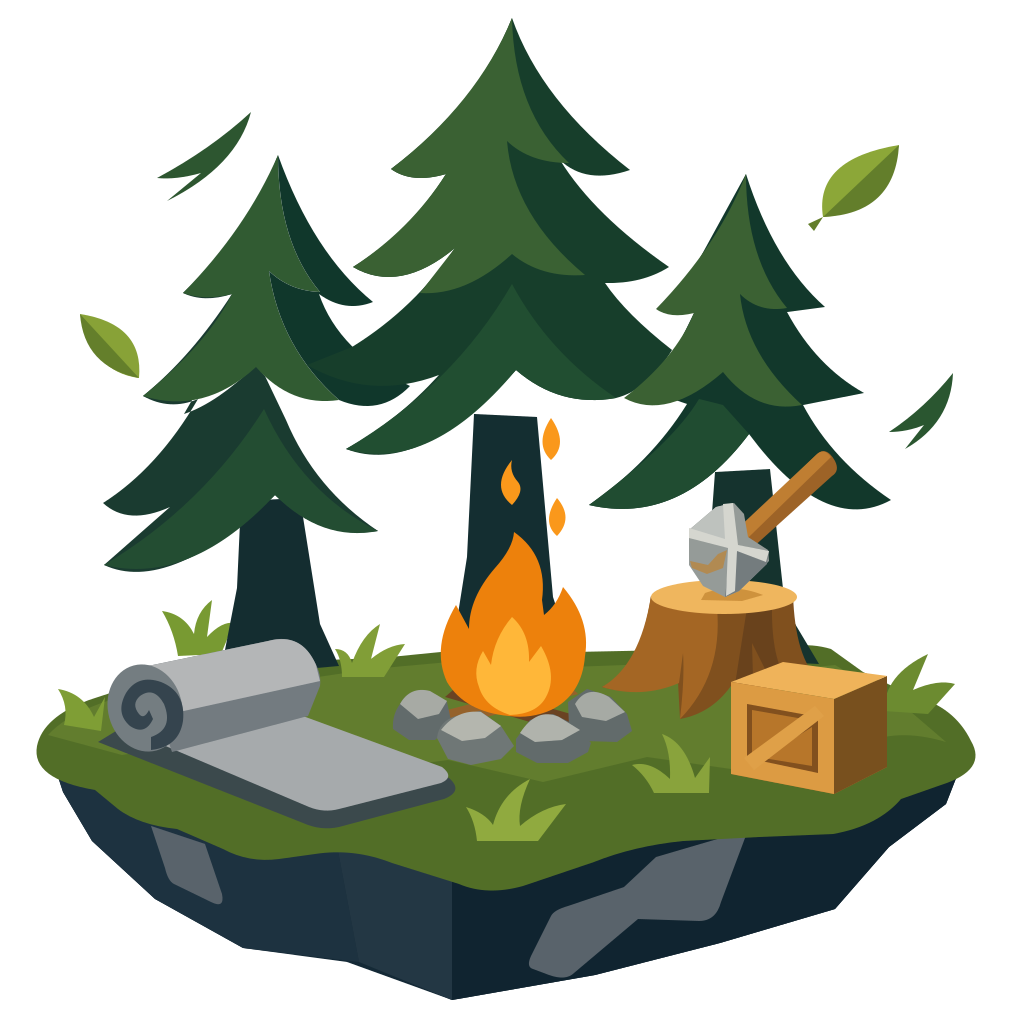
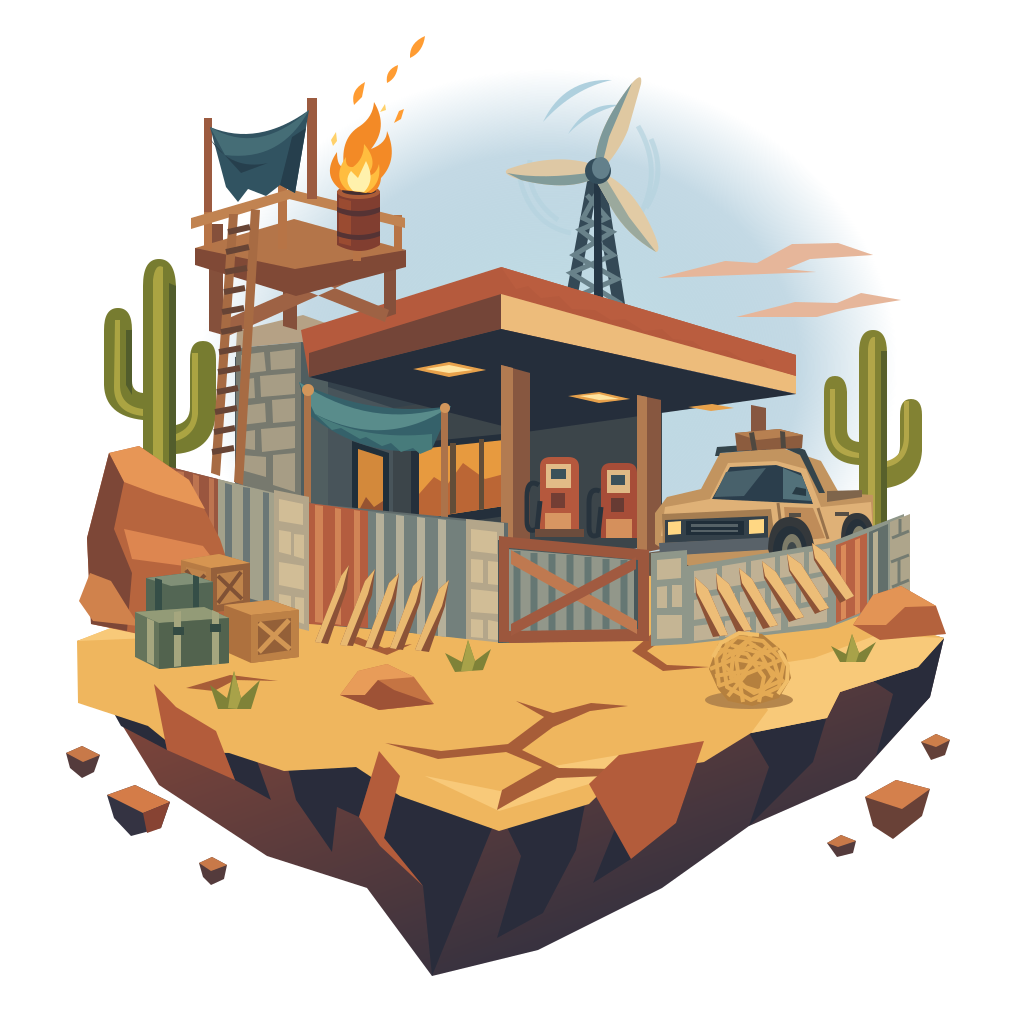
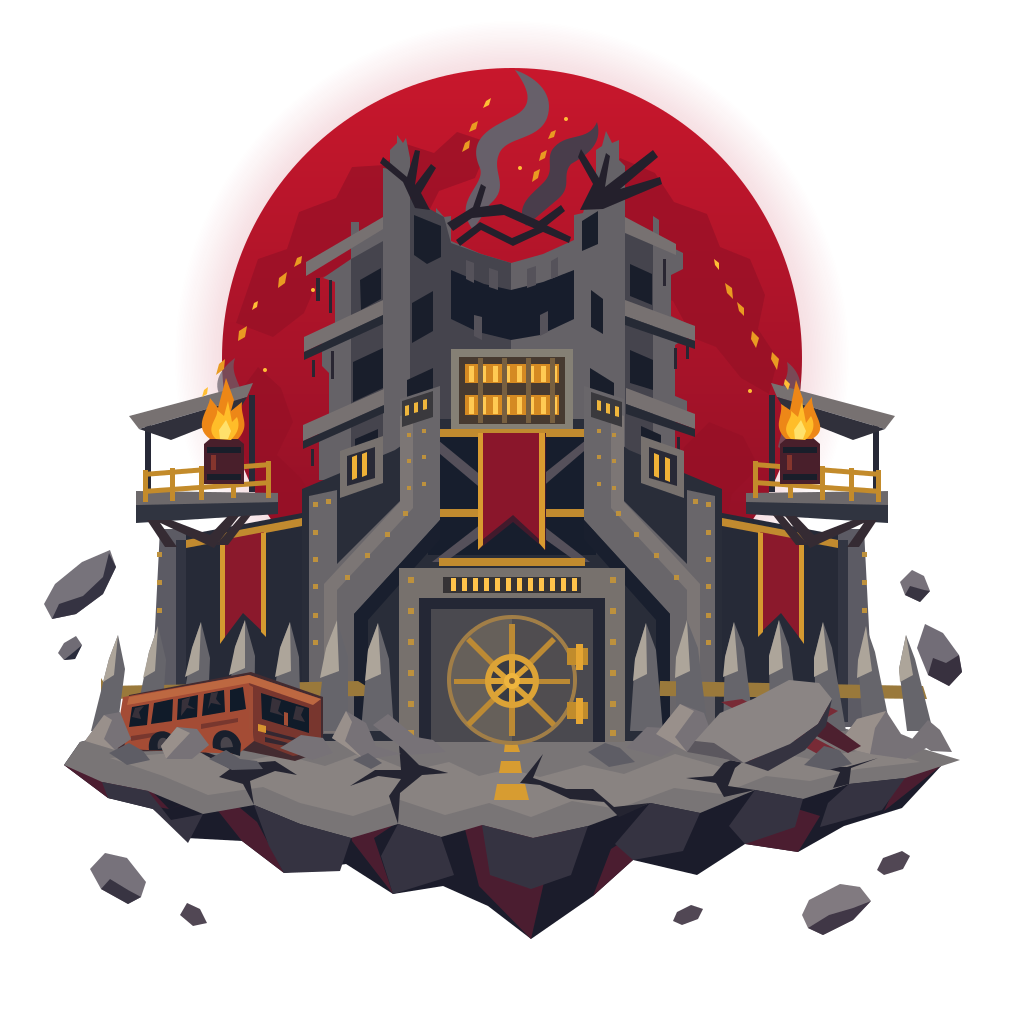
The game's own default is eight players. Pine Forest keeps to that, Desert raises the cap to 20, and Wasteland starts at 30 for a larger community. PC players join from Steam on Windows, Mac or Linux.
Your apocalypse, your rules
One settings file controls the difficulty, how often the blood moon comes, how long a day lasts, when loot returns and whether players can hurt each other.
Mods and overhauls
Modded 7 Days to Die server hosting
7 Days to Die mixes shooting, crafting, base building and tower defense: you scavenge by day and hold your fort when the blood moon rises, every seventh night by default. Mods rework any part of that loop, and full access to your server's files lets you install them yourself.
Set up your 7 Days to Die server in five steps
- Pick the plan that fits your group.
- Select the location closest to your group.
- Pay, and we build the server for you.
- Open
serverconfig.xmland setServerName, aServerPasswordif the server is private, andGameWorld:Navezganefor the map that ships with the game, orRWGfor a random world made from yourWorldGenSeed. - Start the server and send your group its address.
How to connect to your 7 Days to Die server
- Open 7 Days to Die and go to the server browser.
- At the bottom of the browser, type your server's IP address in the first box and its port in the second.
- Connect, and enter the password if you set one.
A server whose ServerVisibility is public is also listed by name in the browser.
How to move your world to the server
Your single-player and peer-to-peer saves are on your PC, in %appdata%\7DaysToDie.
- Open the
Savesfolder. Find the folder named after your world and, inside it, the folder named after your game. - If you played on a random world, copy that world's folder from
GeneratedWorldsas well. - Stop your server and upload both folders to the matching folders in its files.
- In
serverconfig.xml, setGameWorldto the world's name andGameNameto the save's name. - Start the server, and it loads your save.
How to add admins and a whitelist
Admins live in serveradmin.xml, in the server's save game folder.
- Stop the server and open the file.
- Add each admin with a permission level from 0 to 1000. 0 is the highest, and a player with no entry counts as 1000.
- To let in only people you name, add them to the whitelist. One entry switches the server to whitelist-only.
- Start the server again.
The admin, kick, ban and whitelist console commands change the same lists while the server runs.
One folder per mod
Each mod sits in its own folder inside the server's Mods folder, with a ModInfo.xml file that tells the game to load it. Upload the folder, restart the server and the mod is live.
Small tweaks or a new game
Some mods adjust a handful of the game's values. Others add code and reshape how survival works. Read each mod's page before you install it: it says which game version it suits and whether your players need a copy too.
Mods and console players
PS5 and Xbox Series players cannot join a dedicated server that runs mods. Keep the server unmodded if your group plays across PC and console.
What our customers say
We’re rated excellent or 4.3/5.0 based on over 435+ reviews at
- June 14th
Great host! “ I've been with this host for a little over 7 months now. Support is given almost instantly. Max I ever waited was 30(ish) minutes. ”
- Daniel Ramirez
- May 20th
Excellent and easy to use host “ Excellent service, really quick and easy to set up with lots of options and systems that really take the hassle out of hosting a server. ”
- Reece Cooper
- May 5th
I LOVE using RAMShard! “ I very much LOVE using RAMShard. It's efficient, easy to use, and the staff is extremely helpful! ”
- Cole Spencer
Looking for more customer reviews?
Read More »FAQ
Have your own question? Ask us.
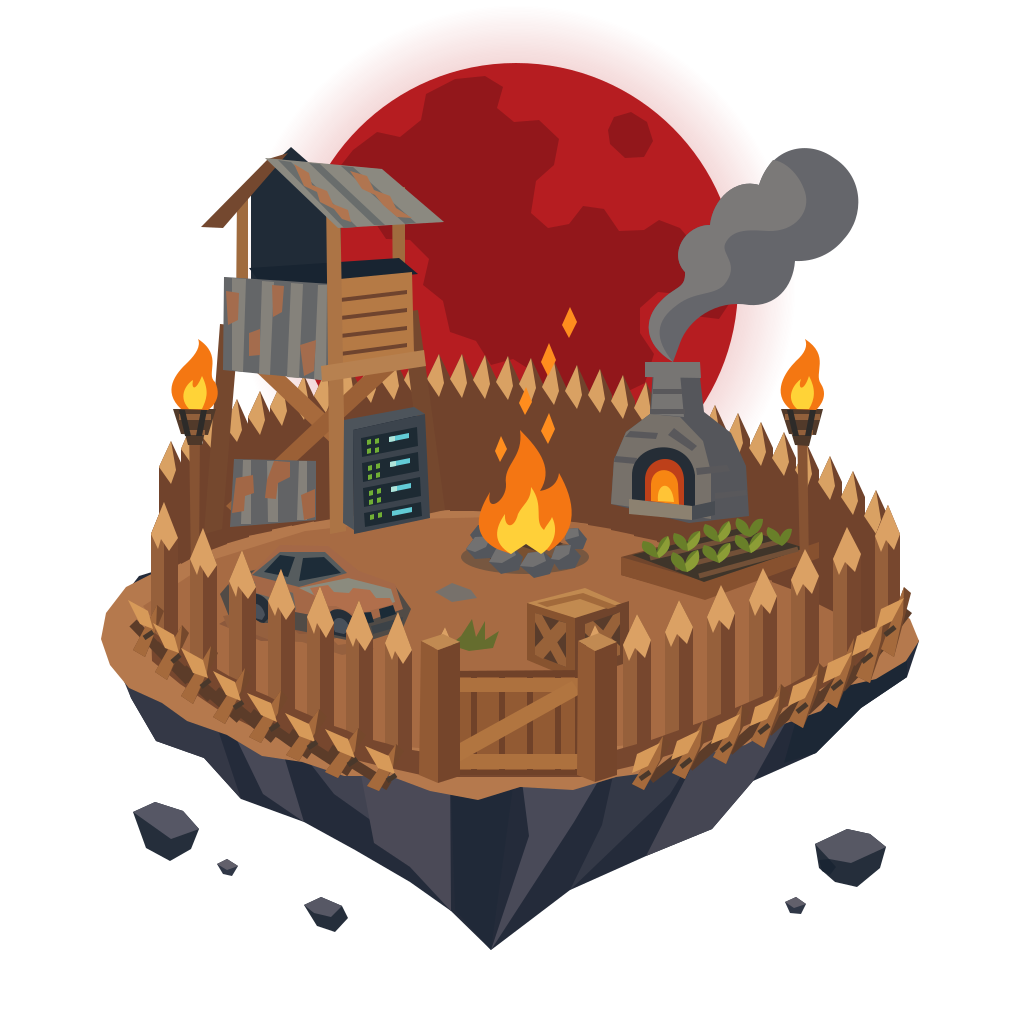
Pine Forest holds up to 8 players, Desert up to 20, and Wasteland starts at 30. Eight is the game's default player count, and it is also the most a server can hold when console players join through crossplay. You can change plan later and keep your world.
The three plans and what each costs per month are at the top of this page. That figure includes the server, DDoS protection and support, and there is no setup fee. Quarterly and annual billing bring the monthly cost down.
Yes, between PC, PS5 and Xbox Series, when the server follows The Fun Pimps' rules for it. The server needs crossplay switched on, anti-cheat switched on, eight player slots at most, no mods, and a few settings such as loot and XP kept inside set ranges. PC players can join whatever the settings are.
Yes, you can. Upload each mod to the server's Mods folder and restart. Whether players need the mod as well depends on the mod, so check its page. Console players cannot join a modded server.
Both are settings in `serverconfig.xml`. `BloodMoonFrequency` is the number of days between hordes: 7 by default, and 0 turns them off. `GameDifficulty` runs from 0, the easiest, to 5. Stop the server before you edit the file, then start it again.
Either one. Set `GameWorld` to `Navezgane` for the map that ships with the game, or to `RWG` to generate a world from the seed you choose. You can also upload a world you made earlier and load it by name.
Yes. Copy the save from your PC, plus the generated world if it was a random one, into your server's files and point the server at them. The steps are in "How to move your world to the server" above.
Set a `ServerPassword` and only people who know it can join. You can also hide the server from the browser with `ServerVisibility`, or add your friends to the whitelist so nobody else gets in.
It is possible. Your PC has to stay on for the world to be online, you forward the server's port on your router (26900 by default), and The Fun Pimps warn that running the server and the game on one computer doubles the memory you need. A rented server runs in a data center 24 hours a day.
Yes. Support is open by ticket and live chat at any hour, and the knowledge base explains the common jobs one step at a time.
Our 3 day money back guarantee covers you. Ask within 3 days of paying and we refund the full amount.
Visa, Mastercard, American Express, PayPal, Apple Pay, Google Pay and Link.
Need a different game?
Choose from our list of games below.